



All Dashcam FAQs
Check out the most common questions our customers asked. Still have questions? Contact our customer support.
What should I consider before choosing a dash cam?
Start with the coverage you need, then compare video quality, parking protection, GPS, app access, storage, and installation. A simple front camera may work for basic daily driving, while a multi-camera setup is better if you want wider protection around the car.
How many camera channels do I need?
A front-only camera is enough for basic road recording. A front and rear dash cam adds rear coverage, while a 3-channel or 4-channel model can provide more context around the vehicle and inside the cabin.
Where is the best place to install a dash cam?
For most vehicles, the best place to install a dash cam is directly behind or slightly to the right of the rearview mirror on the front windshield. This helps keep the lens level, avoids blocking the driver’s view, and captures a balanced view of the road ahead and part of the vehicle hood. During dashcam installation, avoid the airbag deployment area and keep the lens angle around 15°–30° from the horizontal ground line for a stable recording view.
How do I update the firmware on my Vantrue dash cam?
To update the firmware, download the correct firmware file for your dash cam model first. Format the SD card in the dash cam, copy the firmware file to the root directory of the card, then insert the card back into the dash cam and power it on. Do not rename the file or disconnect power during the update. After the device restarts, check the firmware version and format the SD card again before normal use.
How do I connect my Vantrue dash cam to the app?
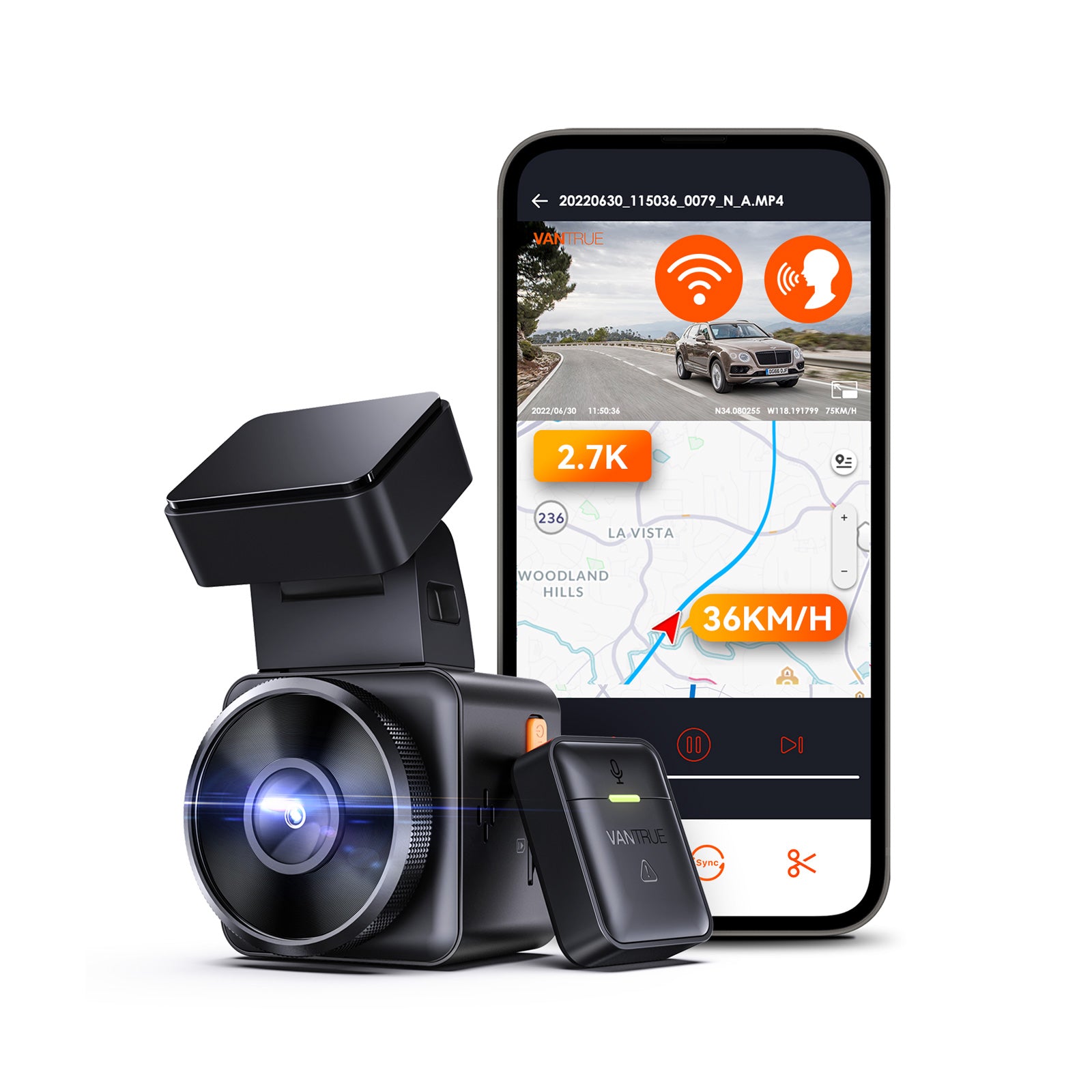
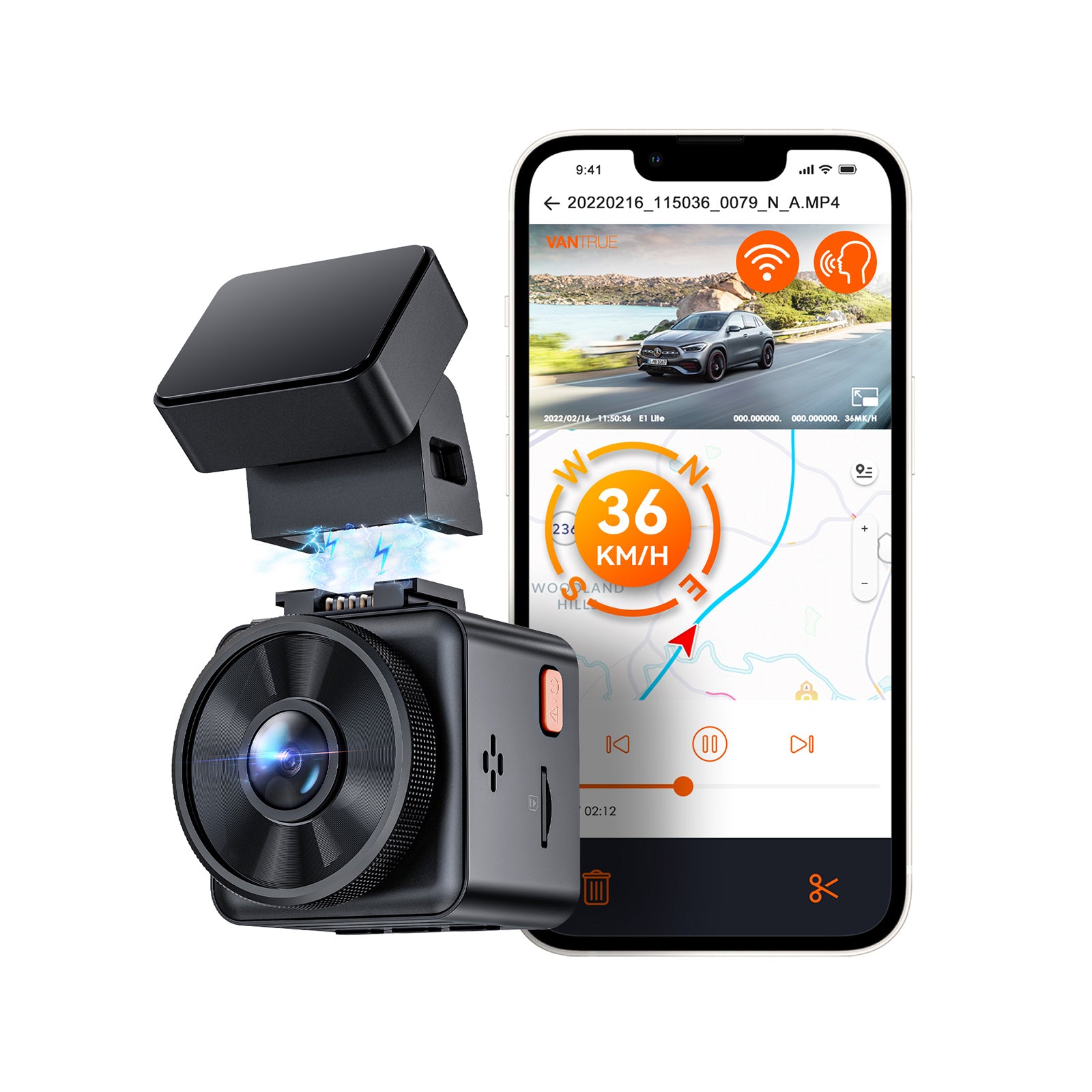
Download the Vantrue app from the Apple App Store or Google Play, then enable the Wi-Fi hotspot on your dashcam. In your phone’s Wi-Fi settings, connect to the dash cam’s Wi-Fi network. For most Vantrue dash cams, the default password is 12345678. After the connection is successful, open the app and the device should be detected automatically. If your phone prompts you to switch networks because the dash cam Wi-Fi has no internet access, choose not to switch.