
Quick Answer
How do you update firmware on a Vantrue dash cam? Turn on the dash cam's Wi-Fi, open the Vantrue App and connect to your exact camera model, then go to "Me" → "Firmware OTA Update" to check for and download the latest version. Tap "Transfer to the dashcam," and avoid touching your phone or camera until the transfer and installation finish — the camera will reboot on its own. The app never installs updates automatically; it only shows a small red dot when a new version is available, leaving the choice of when to update entirely up to you.
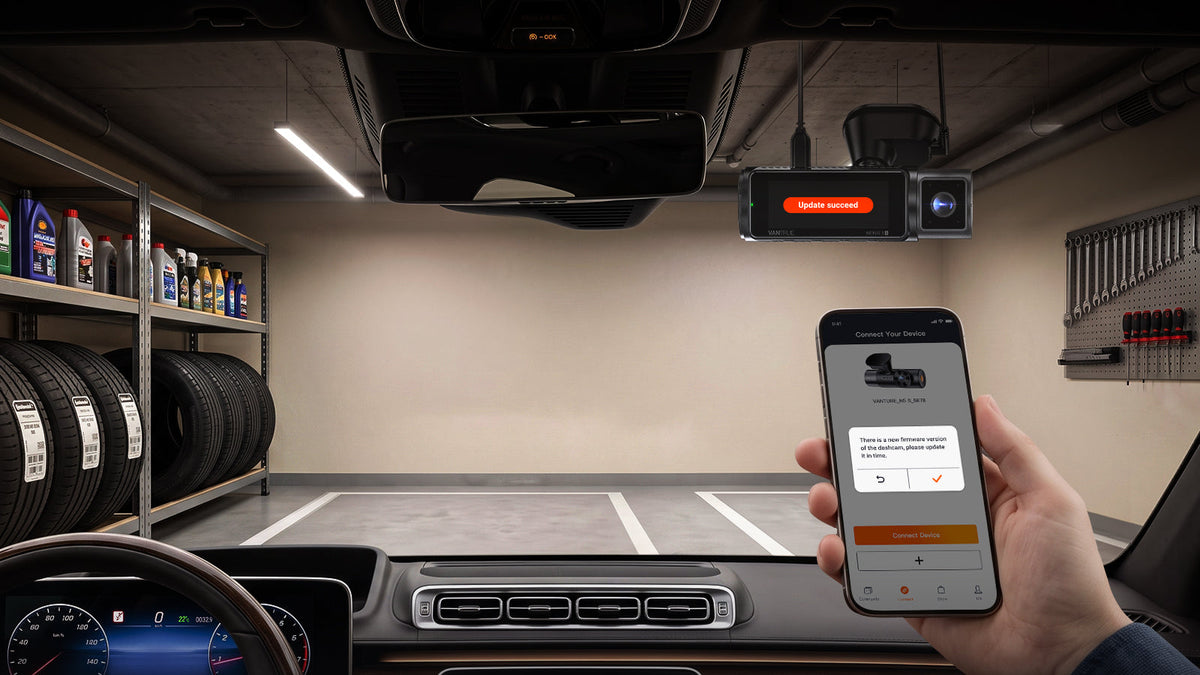
Keeping your dash cam's firmware up to date ensures the best performance, stability, and access to the latest features. Vantrue's OTA (Over-the-Air) update lets you update your dash cam directly through the Vantrue App — no memory card swapping, no USB cable, and no manual file transfers.
Why OTA Firmware Update?
Before OTA, updating a dash cam meant downloading a firmware file on a computer, copying it onto the microSD card (or transferring it over USB), and reinserting the card into the camera. It worked, but it wasn't exactly convenient.
OTA updates change that:
-
No need to remove the memory card or connect a cable
-
No manual file extraction or copying onto the SD card
-
Everything happens over the dash cam's own Wi-Fi
-
Current and new firmware versions are shown side by side in one screen
-
Guided steps inside the app the whole way through
One thing to know: the Vantrue App doesn't auto-install updates in the background, and it doesn't currently push a pop-up alert the moment a new version ships. Instead, you'll see a small red-dot indicator on the update menu when one is ready — checking is quick, and it means nothing gets installed on your camera without you choosing to start it.
What You Need Before Starting
-
The Vantrue App installed and updated to its latest version
-
Your Vantrue dash cam powered on, with a fully charged battery/supercapacitor or connected to the car charger
-
The dash cam's Wi-Fi switched on and staying on for the whole process
-
Your phone connected to the internet to download the firmware package, and kept near the camera during the update
-
If you don't own the LT01 LTE module, avoid selecting the "LT01 + [model]" pairing when connecting
Step-by-Step OTA Update Guide
1. Power On the Dash Cam and Turn on Wi-Fi
Start the camera and check that its Wi-Fi is active — this is what the app connects to.
Look at the Wi-Fi icon on the dash cam's screen to confirm the current status. If it shows as off, you can turn Wi-Fi on through the Wi-Fi shortcut button, the settings menu, or a voice command.

2. Open the Vantrue App and Select Your Model
Launch the app, choose to connect a device, and pick your exact camera model from the list.
If you did not purchase the LT01 LTE module, select your camera model on its own — not the "LT01 + [model]" pairing — or the connection won't complete.


Select your model directly; skip the LT01 pairing unless you own that module.
3. Wait for the Connection to Complete
The app confirms once it's paired with your dash cam over Wi-Fi.

4. Go to "Me" → "Firmware OTA Update"
Tap the Me tab in the bottom-right corner, then open Firmware OTA Update. Since updates aren't pushed automatically, this is where you check — a small red dot appears here when a new version is available.

5. Check Your Current Firmware Version
The screen shows your camera's current firmware version(s) while it checks against the latest release.

6. Download the New Firmware
If a newer version is available, it's listed below your current version. Tap Download and follow the on-screen prompts.


7. Push the Firmware to Your Dash Cam
Once downloaded, tap Transfer to the dashcam immediately to send the file to your camera over Wi-Fi.

8. Do Not Operate the App or Dash Cam During Transfer
Once the transfer starts, the camera installs the update on its own. Leave your phone and the dash cam alone until it's done — interrupting power or Wi-Fi mid-install is the main thing to avoid.

9. Let the Dash Cam Reboot and Set It Up Again
The camera restarts on its own once the update finishes. Go through the initial setup screens again, just like the first time you used it.
10. Confirm the Update
Reconnect in the app when prompted to verify the update was successful, or check directly on the camera under System Settings → System Info to confirm the firmware version now matches the latest release.

Final Thoughts
OTA updates make keeping your dash cam's firmware current far less of a chore — a few taps in the Vantrue App and you're done, with no cables or memory card juggling involved. And because nothing installs until you tap through it yourself, you're always the one deciding when your camera goes offline for a minute to update, not the app.
Once you're on the latest firmware, your dash cam is running with the newest stability improvements and features Vantrue has released for your model.
FAQs
Does the Vantrue App update firmware automatically?
No. The app doesn't install anything in the background. A small red dot appears on the update menu when a new version is available, but you always start the download and installation yourself from Me → Firmware OTA Update.
Is it safe to update dash cam firmware over Wi-Fi?
Yes, as long as the camera stays powered and your phone stays connected for the whole transfer. As with any firmware update, the main risk is losing power or Wi-Fi mid-install, which is why the app tells you not to operate either device once the transfer starts.
My dash cam won't connect to the Vantrue App — what should I check?
Confirm the dash cam's Wi-Fi is switched on, that you selected the correct model (not a mismatched LT01 pairing if you don't own that module), and that your phone isn't still connected to a different Wi-Fi network or hotspot. Restarting the camera and reopening the app resolves most connection issues.
What happens if the firmware update is interrupted?
Keep the dash cam powered and in range for the entire process to avoid this. If a transfer does get interrupted, reconnect in the app and try the OTA update again from the beginning.
Share:
The Ultimate Back-to-School Road Trip Guide for Parents
Vantrue Privacy Mode Updated: The Most GDPR-Compliant Dashcam in Europe.
1 comment
I have a Vantrue X4S dash cam and want to update the firmware for the camera. I don’t want it connected to my phone so how can I get the update to this device?