AI Dash cam FAQs
Check out the most common questions our customers asked. Still have questions? Contact our customer support.
Can an intelligent dash cam help manage footage more easily?
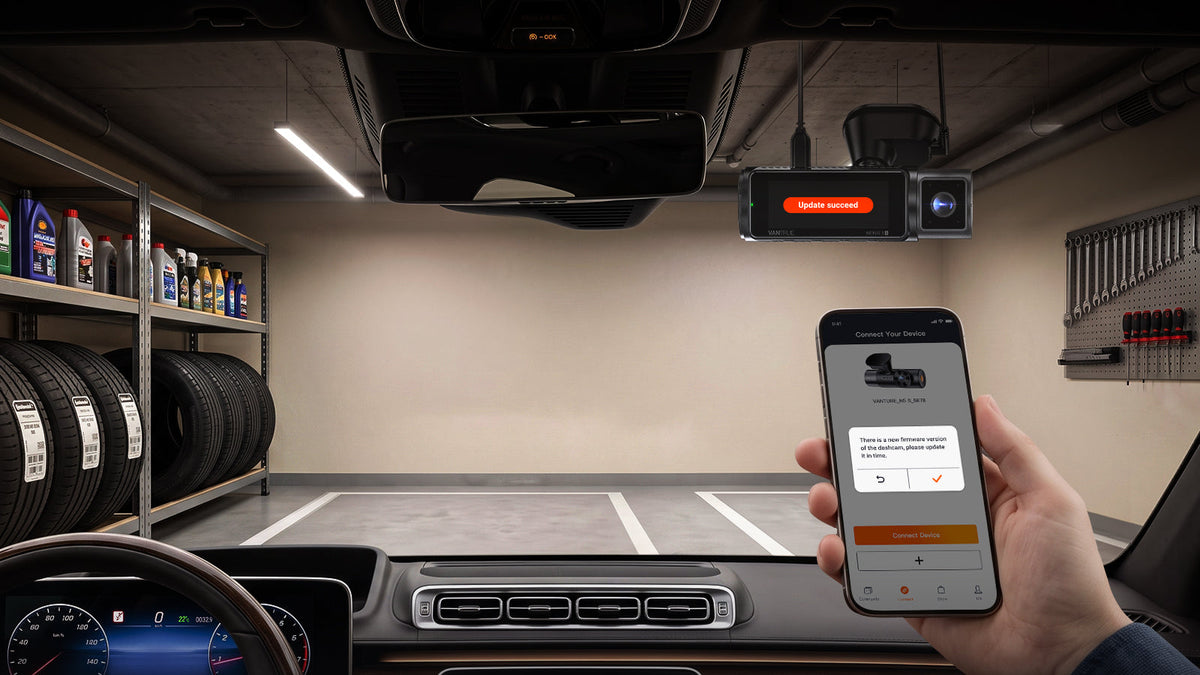
Yes, connected features can make it easier to view, download, or organize footage. For example, app-based access can help you review recordings without removing the memory card.
Do smart dash cams need Wi-Fi or an app?
Some smart features may require Wi-Fi, an app, or another connection method, while basic recording may not. Check the model details to understand which functions need connectivity.
What should I do if the dash cam’s Wi-Fi conflicts with Apple CarPlay?
A dash cam uses Wi-Fi to connect with the mobile app, while Apple CarPlay may also rely on Wi-Fi to communicate with your phone. When both systems are active at the same time or on nearby channels, they may interfere with each other and cause CarPlay to become unstable or disconnect. To reduce this issue, exit the Vantrue app after viewing or downloading videos, then turn off the dash cam’s Wi-Fi until you need to access footage again. If your vehicle supports wired CarPlay, connecting your phone to the head unit with a USB cable can also help avoid Wi-Fi conflicts.
What should I do if the GPS is not working on my dash cam?
If GPS is not working, first confirm that you are using the dedicated GPS mounting bracket. Then update the dash cam to the latest firmware version and perform a factory reset if needed. In the GPS settings menu, check that the “GPS Watermark” feature is enabled. The dash cam should also be positioned in an open area with a clear view of the sky, away from tall buildings or trees that may block the signal. Finally, make sure the device is receiving power through the GPS mounting bracket.
How do I set up GPS positioning on my Vantrue dash cam?
To use GPS positioning, make sure you are using the dedicated external GPS mounting bracket. After installation, open the dashcam settings menu and enable GPS setup. The GPS icon on the screen will usually stop blinking and stay steadily lit once the device has successfully locked onto a GPS signal. For better GPS performance, install the dash cam in a position with a clear view of the sky and avoid areas blocked by buildings, trees, or other obstructions.
About AI Dash cam
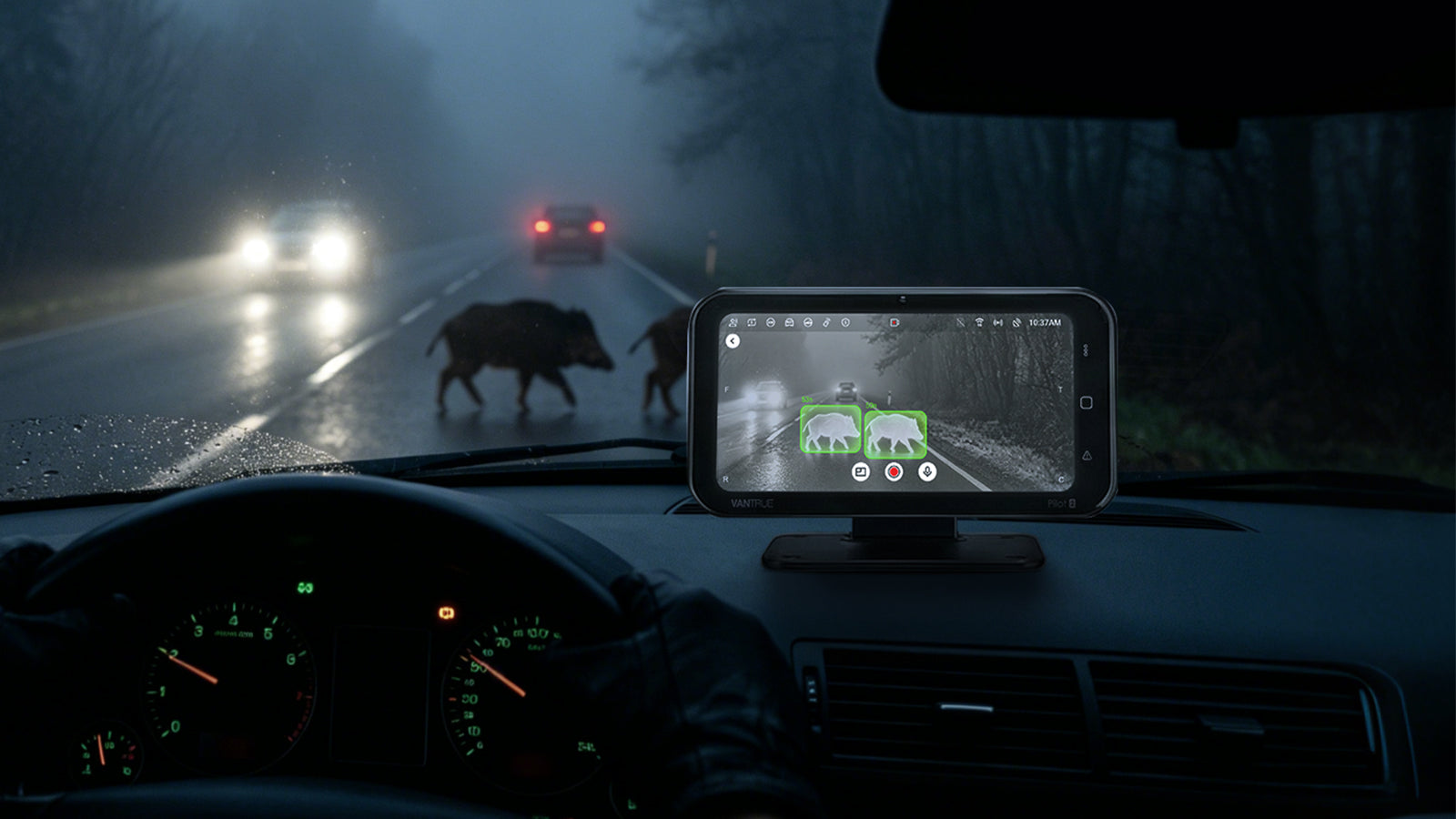
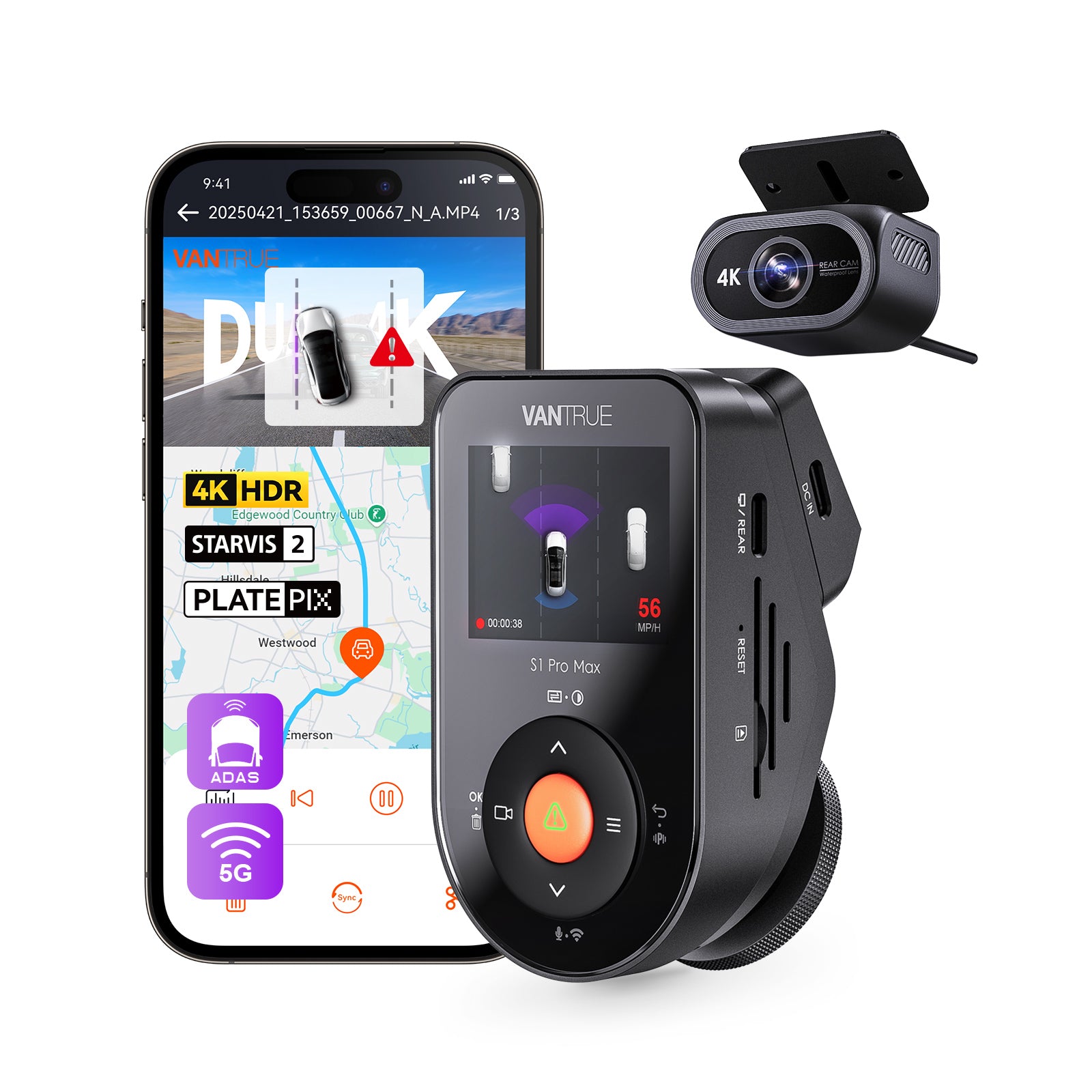
AI dash cams use advanced technologies such as driver monitoring, object detection, and collision alerts to improve driving safety. By analyzing road conditions and driver behavior in real time, AI-powered dash cams can provide warnings for potential hazards and support safer driving decisions. They are increasingly popular among fleets and safety-conscious drivers.
Explore More